Contents
1. Getting started
- Install Sheet for Salesforce from the Chrome Web Store, then pin it from Chrome's Extensions menu if you want quick access.
- Open Salesforce in Chrome and sign in normally. Sheet for Salesforce reuses that browser session; it does not ask for a separate Salesforce password.
- Click the Sheet for Salesforce toolbar icon. Select the current Salesforce org, or another detected signed-in org, and choose Open.
- Check the org indicator at the top of Sheet for Salesforce before loading or updating data.
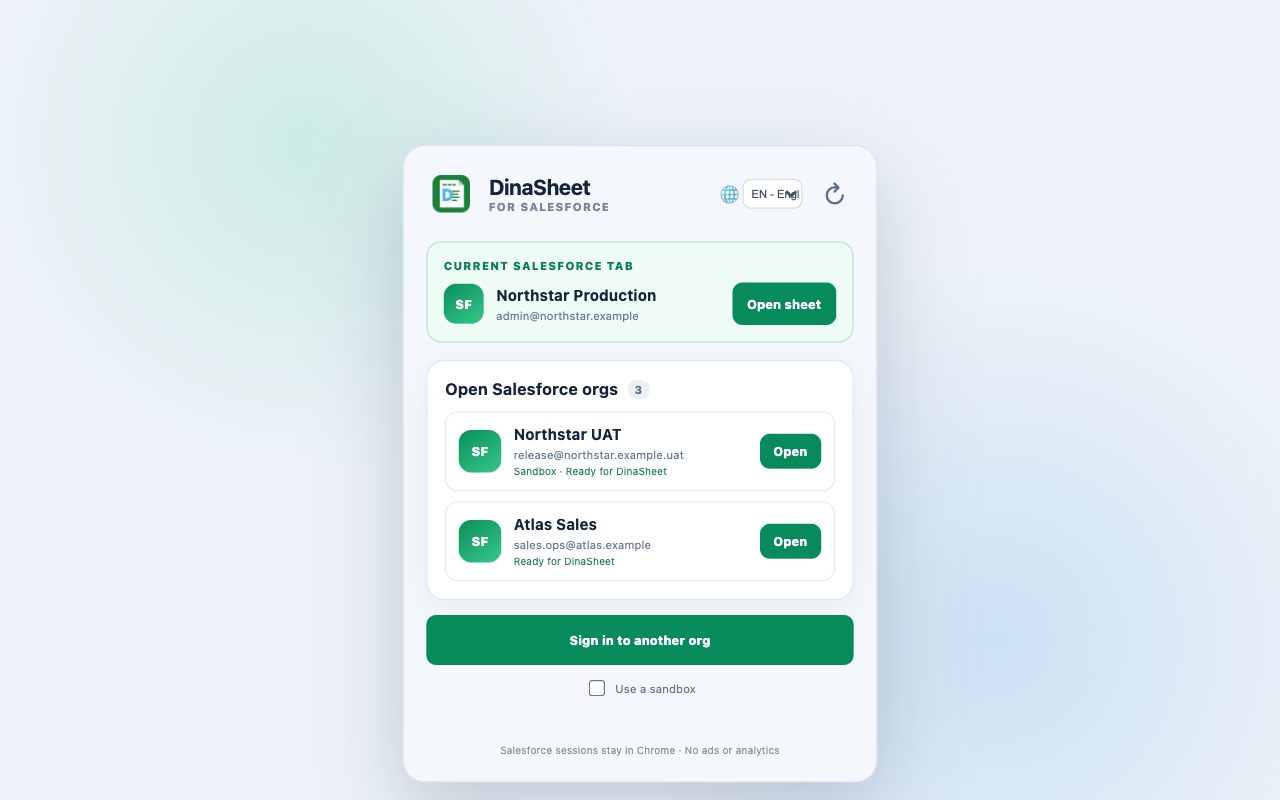
No org shown? Open or sign in to Salesforce, return to the toolbar popup, and refresh the detected sessions.
2. Saved queries and Favorites
- Expand Query in the Salesforce Data sidebar. Create folders and SOQL files to keep reusable queries scoped to the current Salesforce org.
- Open a Query file to run its SOQL and load current Salesforce data. Include
Idif you may need to update the returned records. - Use File details to edit the SOQL, see the resolved Salesforce object and update availability, then choose Run and update sheet.
- From a Query file, list view, or report menu, choose Add to Favorites…. Select the permanent Default folder or create another Favorites folder.
- Open Favorites to reopen a shortcut, move it to another folder, edit its folder memberships, or remove it. Favorite definitions are per org; result rows are loaded live and are not cached with the shortcut.
- Use the spreadsheet toolbar for cell formatting and grid actions. Changing a cell does not immediately change Salesforce.
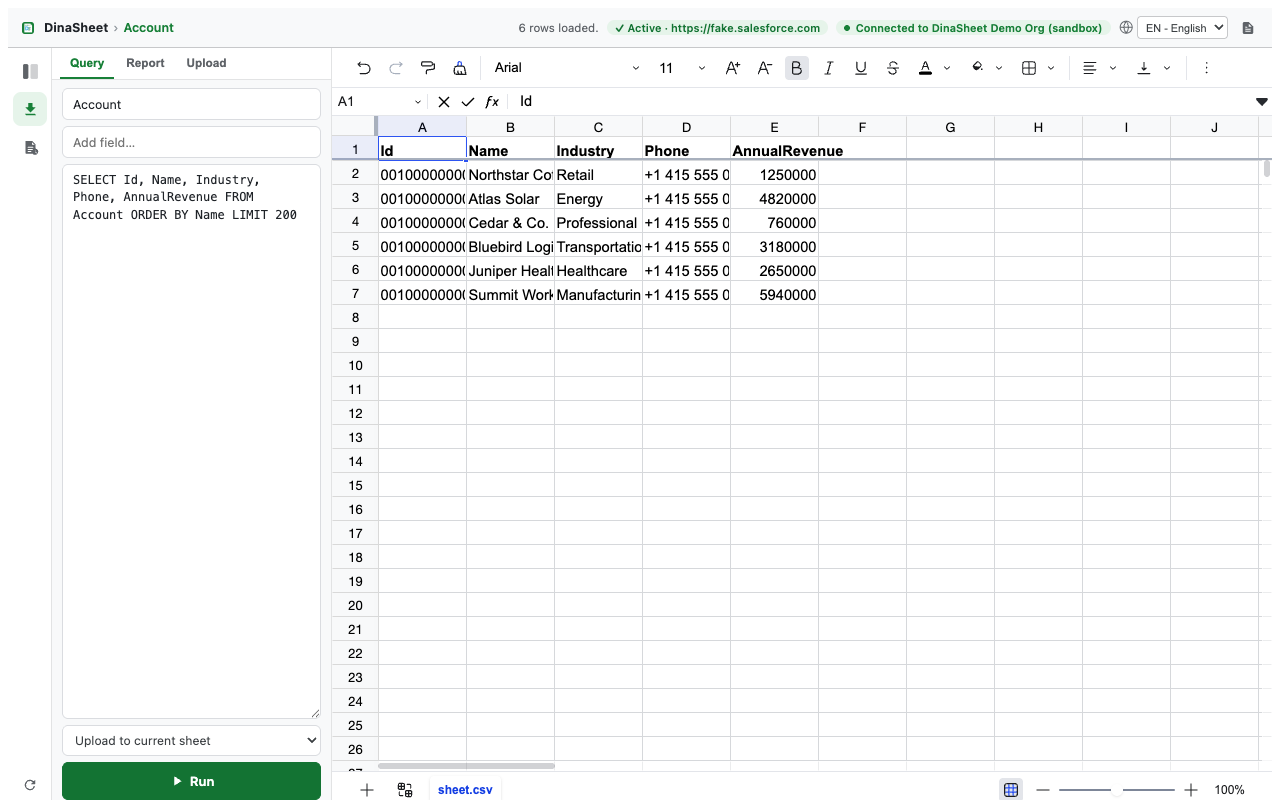
Update eligibility: a sheet needs an Id column whose records resolve to one Salesforce object. Query definitions and Favorite shortcuts persist locally; Salesforce result rows do not.
3. Review and update records
- Edit one or more supported fields in a sheet that has an eligible
Idcolumn. - Open the details panel if it is hidden. The Changed fields card lists each record and its exact before-and-after values.
- Select Update on the review card.
- Read the confirmation dialog. Choose Cancel to make more changes, or Update to send only the displayed values to Salesforce.
- After a successful update, Sheet for Salesforce saves a bounded local audit receipt for the changed fields.
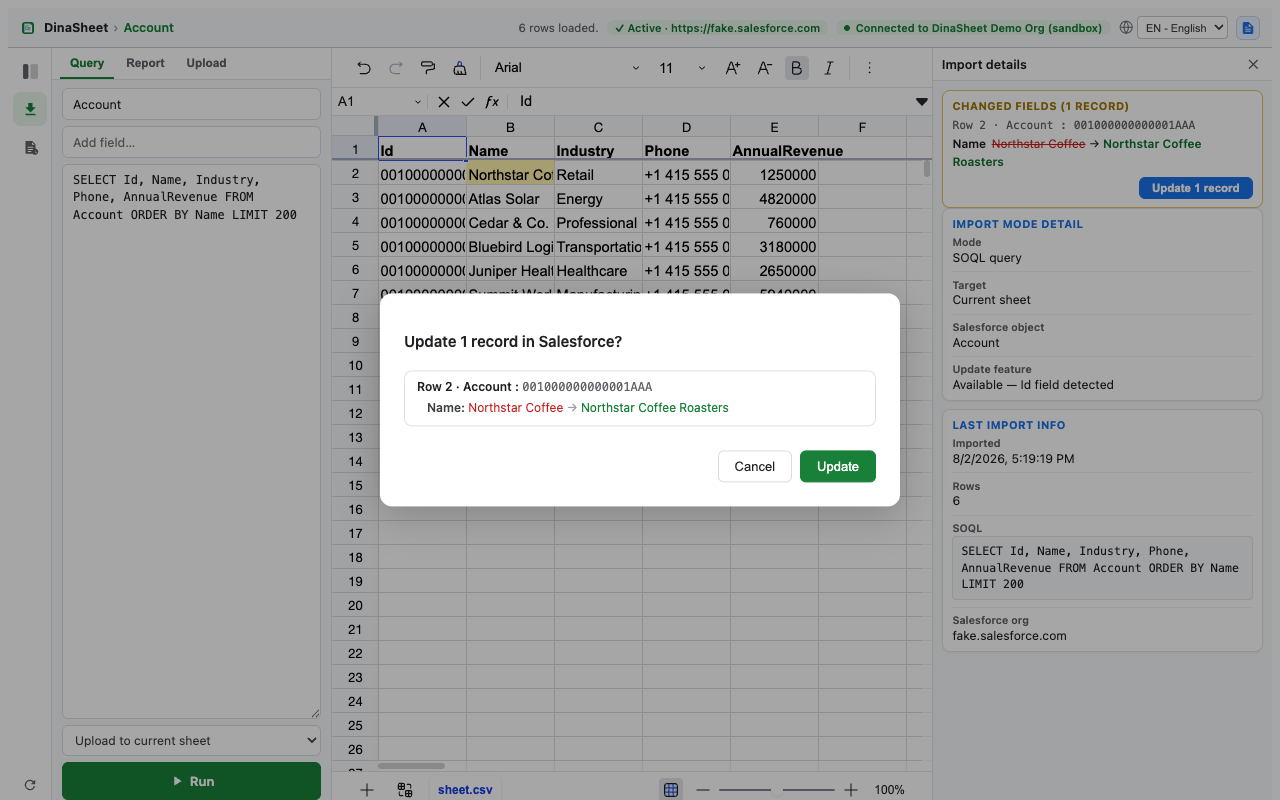
Sheet for Salesforce does not provide record deletion. Editing the grid remains local until you explicitly confirm an eligible update.
4. Update audit and rollback
- Select the LOG rail icon to open the Update Audit Log.
- Find the relevant object and update time. Audit entries are shown newest first.
- Select the Rollback cell for each row whose recorded prior values you want to restore.
- Review the resulting Changed fields card. A rollback is prepared as a normal Salesforce update; it is not sent automatically.
- Verify the record's current Salesforce value, especially if someone may have edited it since the receipt was recorded, then confirm or cancel the update.
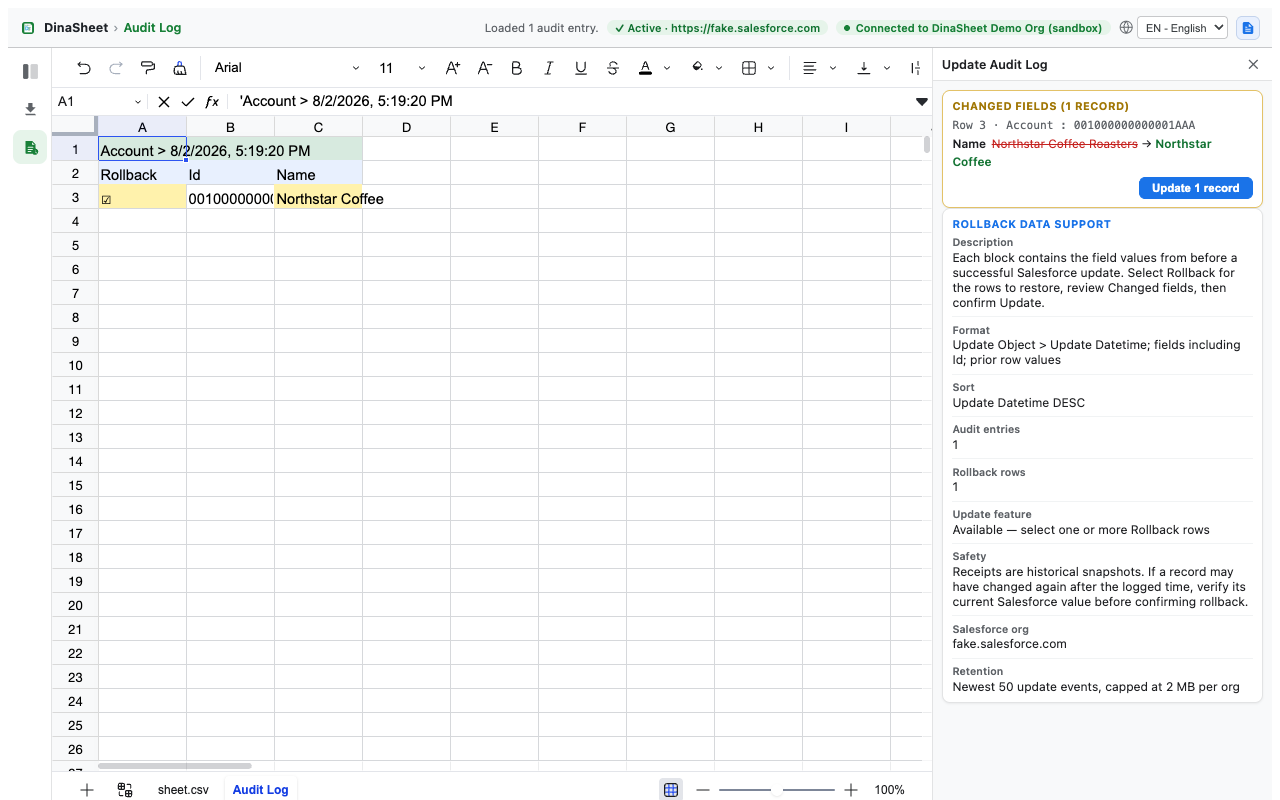
Receipts are historical snapshots. They do not prove the record is unchanged. Verify current values before confirming a rollback.
5. CSV and Excel files
- Open the Import panel and select Upload.
- Choose a local CSV or Excel file and select the current sheet or a new sheet as the target.
- Select Run. Sheet for Salesforce parses the file locally in the browser and shows the file name, row count, target, and detected Salesforce object details.
- If the imported table contains valid record IDs for one object, the reviewed update flow can become available. Confirm the resolved object before updating.
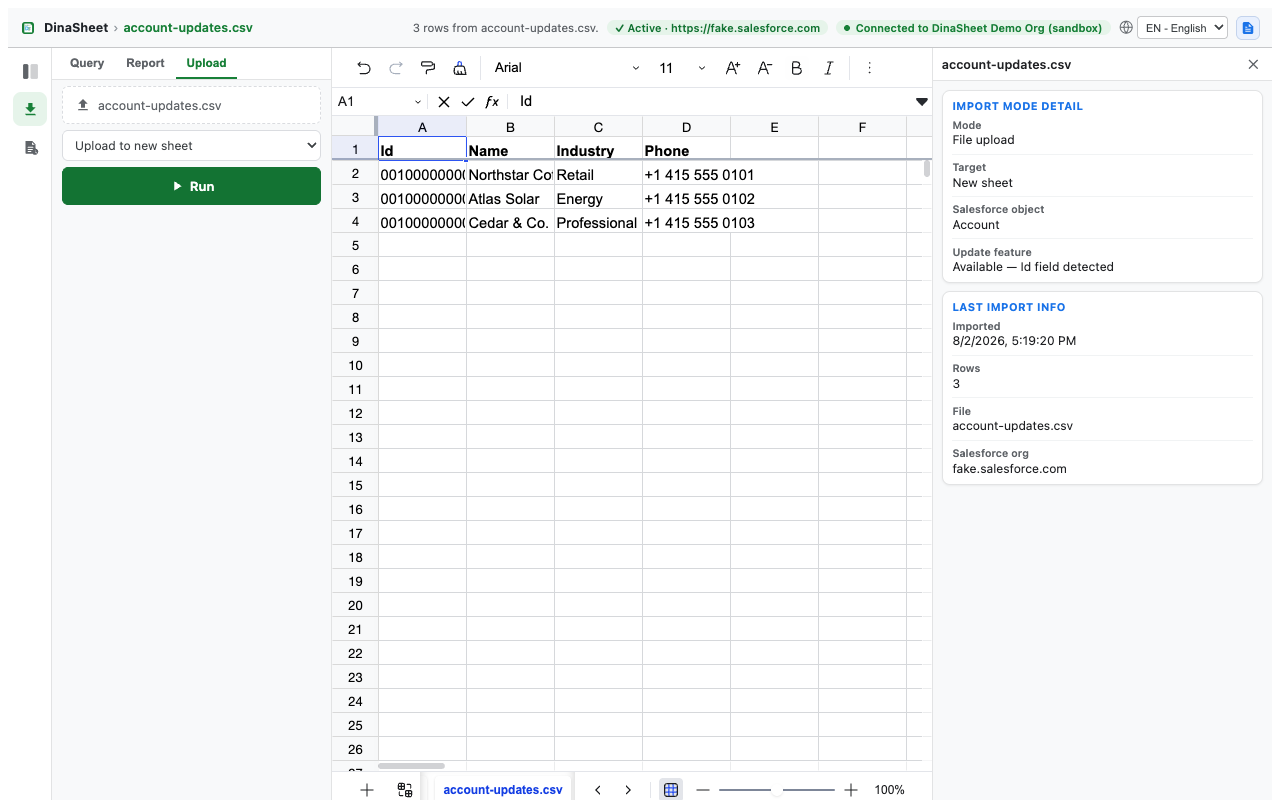
Opening a file does not upload it to DinaLab or another developer-operated server. Workbook files and sheet snapshots are not persisted by Sheet for Salesforce.
6. Salesforce reports
- Open the Report import mode or choose a report from the Salesforce data browser.
- Search by report name or enter a report ID, choose the target sheet, and select Run.
- Review the report name, API name, folder, format, description, filters, and source details beside the grid.
- If Salesforce's JSON report API reaches its 2,000-row cap, Sheet for Salesforce attempts the same report's full workbook export from Salesforce.
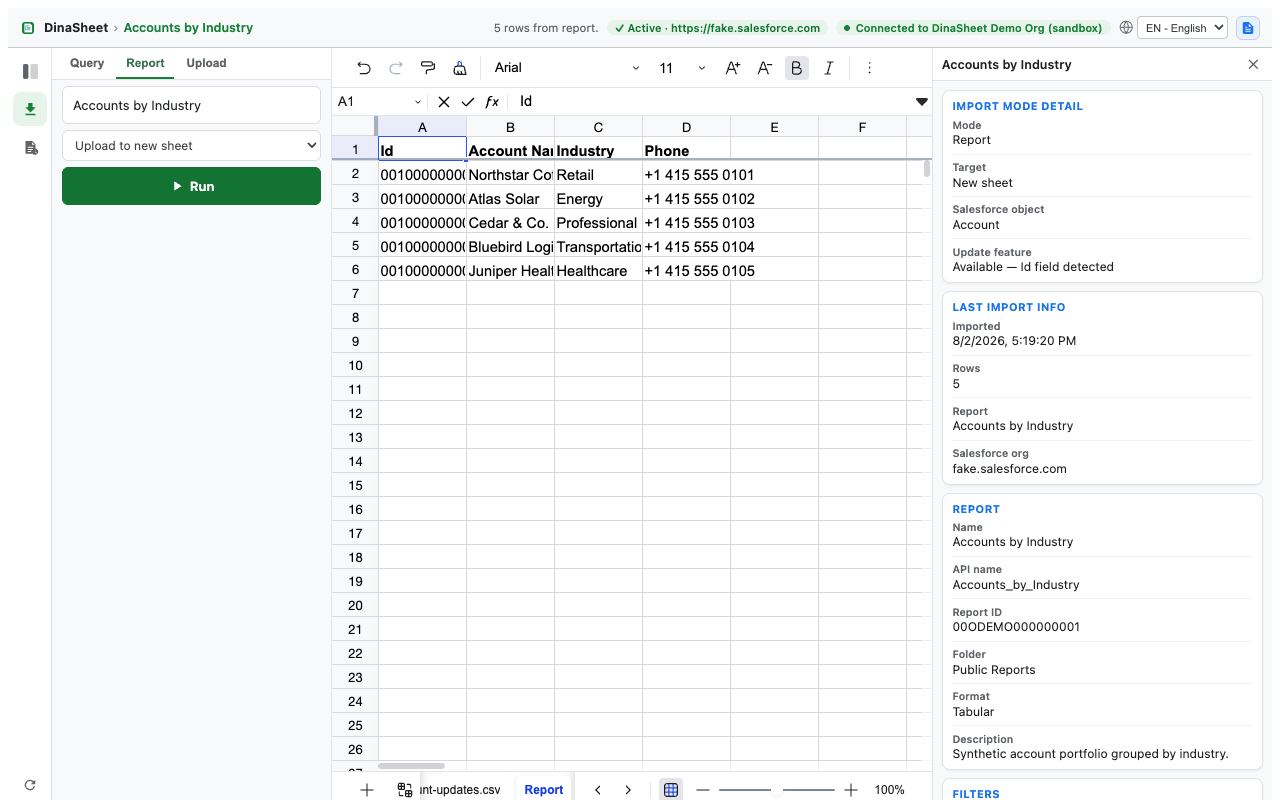
Grid edits do not change the Salesforce report definition. If report rows contain valid record IDs for one object, any available reviewed update acts on those Salesforce records—not on the report itself.
7. Download and language
Download sheets and Favorites
- Use a Query file or Favorite menu to download one item directly as CSV or Excel.
- Use Download Folder… on a Favorites folder to create a ZIP of CSV files or one Excel workbook with multiple sheets.
- For folder downloads, Sheet for Salesforce shows progress, allows cancellation between items, and continues past individual failures when at least one item succeeds.
- To export the current grid instead, activate its sheet and use the spreadsheet download action.
- Review the downloaded file before using it in another system.
Change the interface language
Sheet for Salesforce initially follows the Salesforce user language when available. Use the language selector in the popup or Sheet for Salesforce header to switch between EN — English and JP — 日本語. Changing the language reloads Sheet for Salesforce.
8. Storage, privacy, and safety
- Always confirm the active Salesforce org before running a query or update.
- Record updates require row selection, field-level review, and final confirmation.
- Audit receipts store only changed fields and are limited to the newest 50 successful update events and 2 MB per Salesforce org.
- Preferences, Query folder/file names and SOQL, up to 30 Favorites folders and 100 Favorite shortcuts per org, and receipts are stored on the device in Chrome extension storage.
- Salesforce query/report result rows, imported file contents, and workbook cell snapshots are not persisted in extension storage.
- Delete Query definitions in Sheet for Salesforce, or clear extension storage or uninstall Sheet for Salesforce, to remove locally stored definitions and shortcuts.
- The Salesforce session cookie and authorization header remain inside the extension.
- Sheet for Salesforce has no analytics, telemetry, advertising, external messaging, or developer-operated data backend.