It starts from the right object
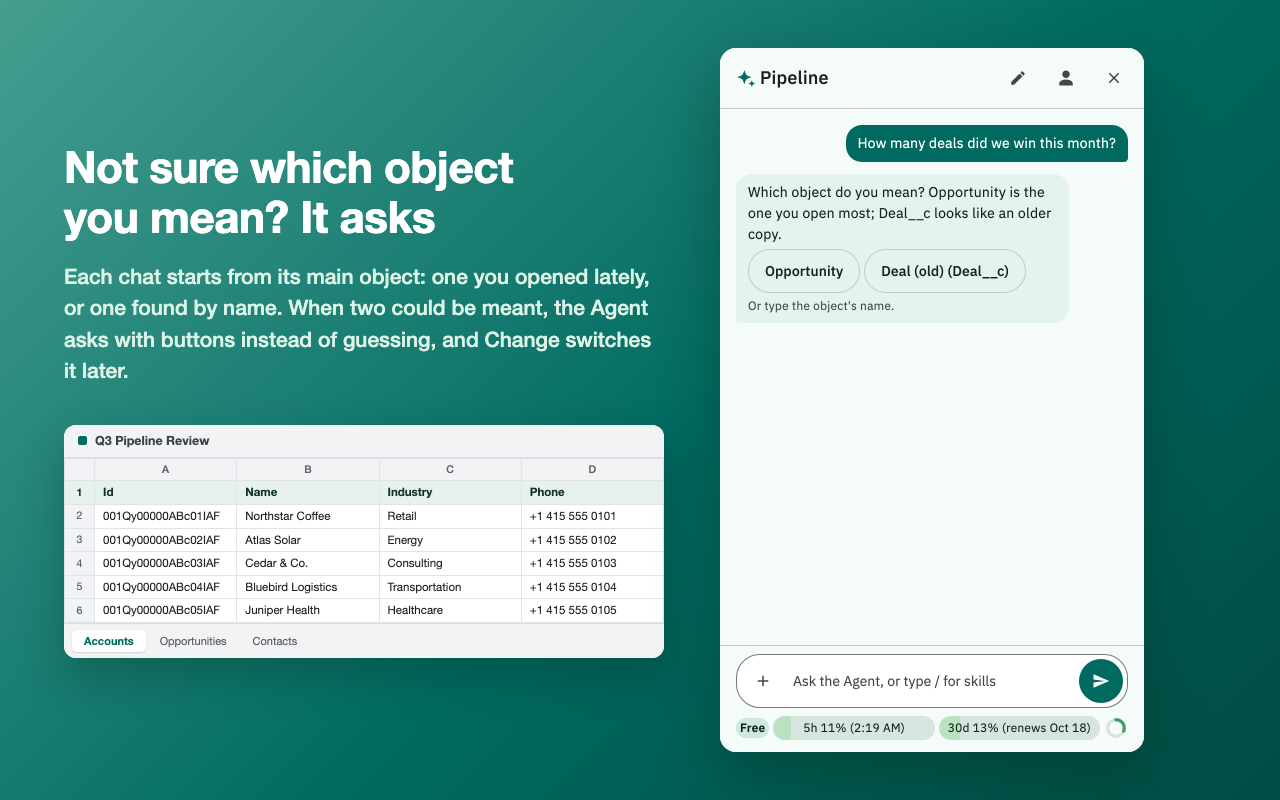
Each chat begins from its main object: one you opened lately, or one found by name. When two could be meant, the Agent asks with buttons instead of guessing, and you can change it later.
A side panel for the Google Sheets™ spreadsheet you already have open, connected to the Salesforce organization you are already signed in to. Import objects, list views, your own SOQL, and reports into a worksheet, then send confirmed record changes back. There is no developer-operated backend and no Apps Script to install.
SheetConnect is an independent product and is not affiliated with, endorsed by, or sponsored by Salesforce or Google.
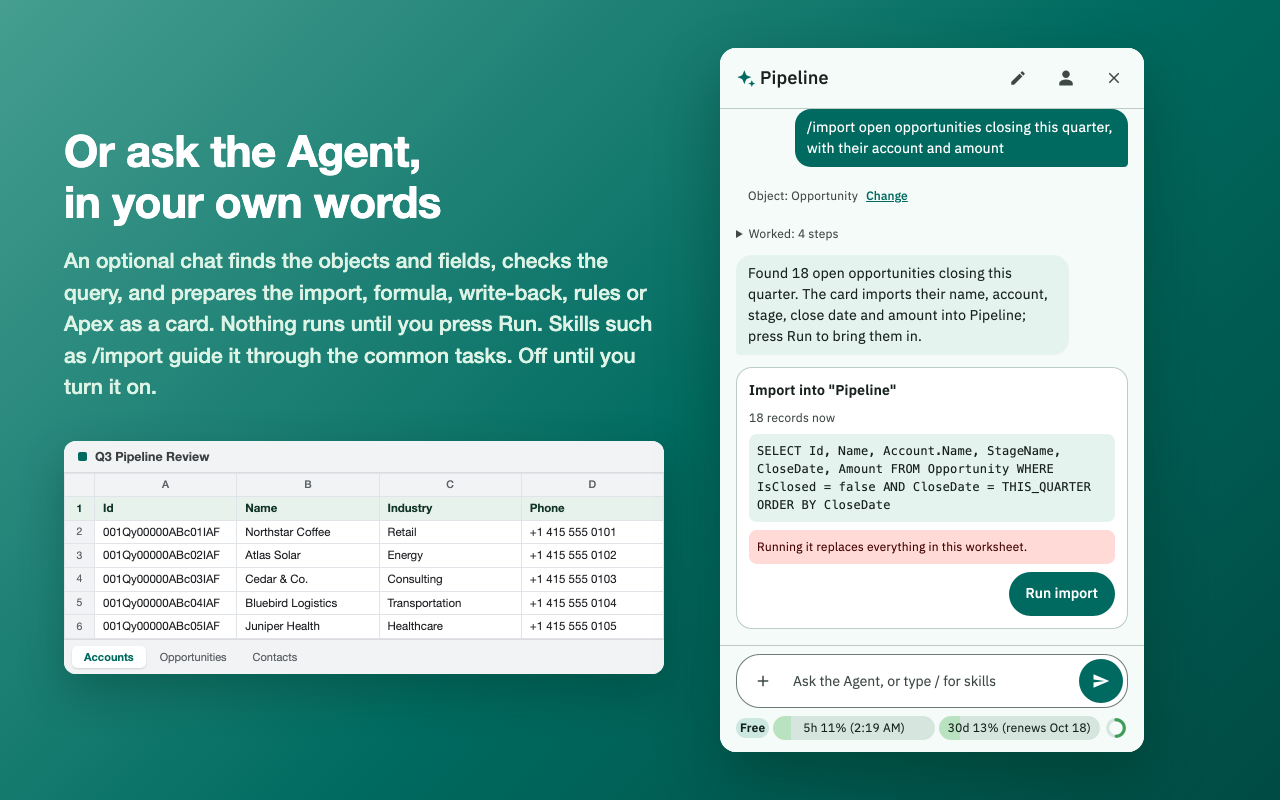
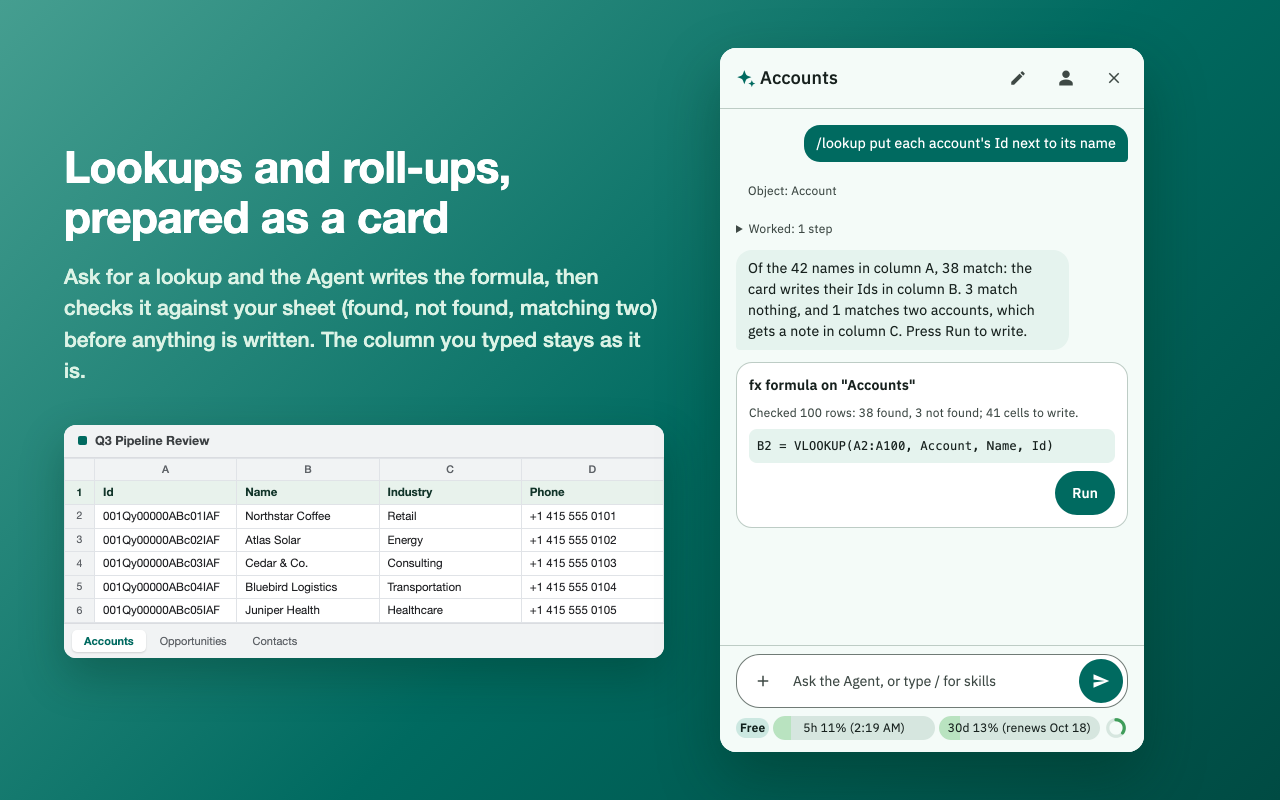
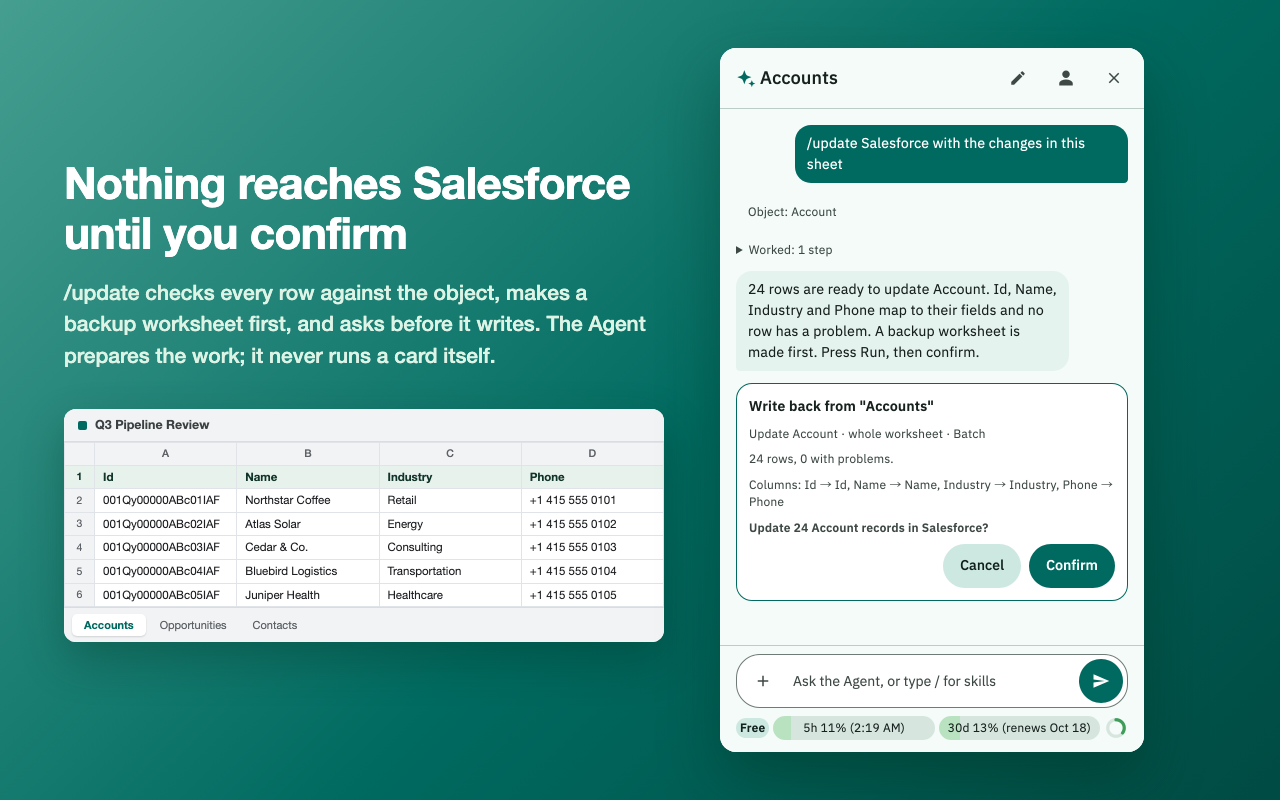
An optional chat beside the tools, off until you turn it on. Ask for what you need, such as “import open opportunities closing this quarter” or “put each account's Id next to its name”, and the Agent finds the objects and fields, checks the query or formula against your sheet, and prepares the work as a card in the chat. Nothing runs until you press Run, and a write to Salesforce still waits for your confirmation.
Each chat begins from its main object: one you opened lately, or one found by name. When two could be meant, the Agent asks with buttons instead of guessing, and you can change it later.
Imports, lookups and roll-ups, write-backs, validation rules and Apex come back as cards, each checked against your sheet first. You run them; the Agent never does.
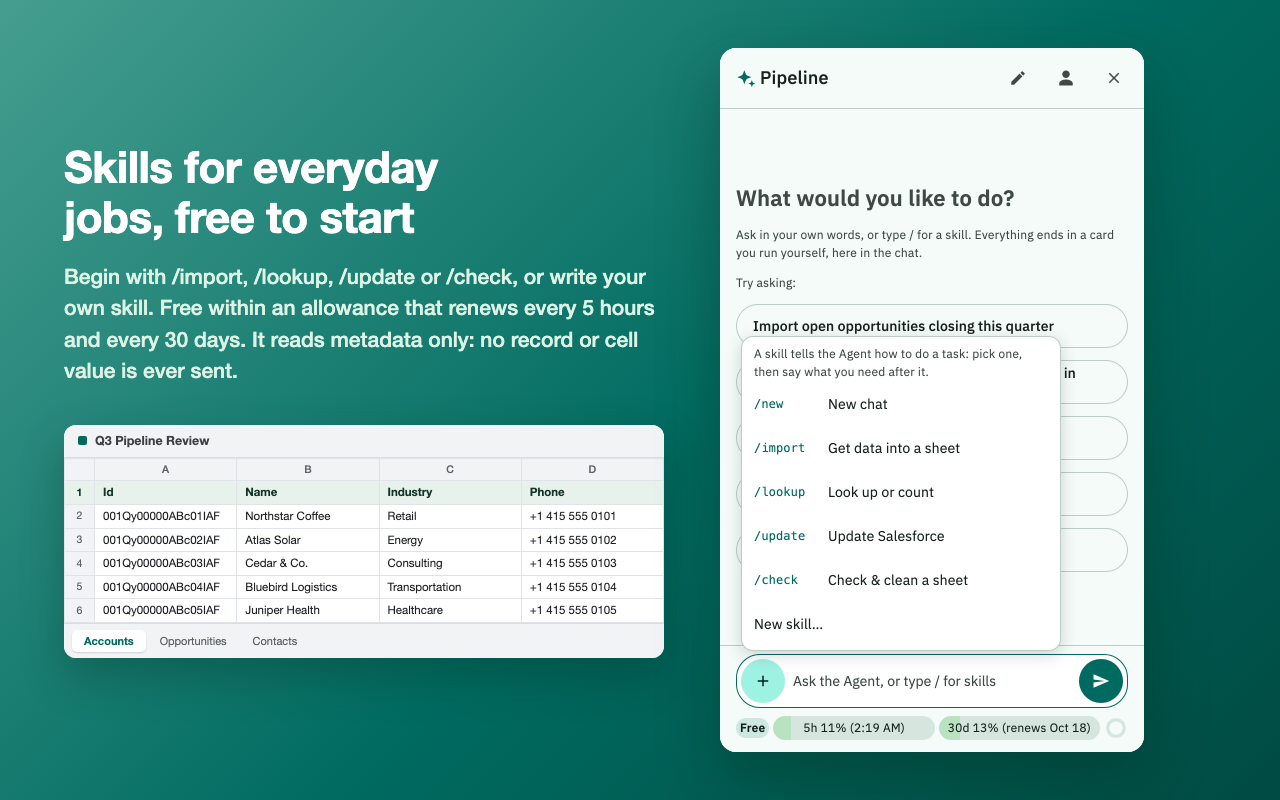
/import, /lookup, /update and /check guide the common tasks, and you can write skills of your own.
It reads names, labels and counts. No record's or cell's value is sent, and your Salesforce session and Google access stay in the browser.
Free within an allowance that renews every 5 hours and every 30 days; the allowance may change.
Ask in English, Japanese or another language and it answers in the one you wrote in, reading your org's own labels as it goes.
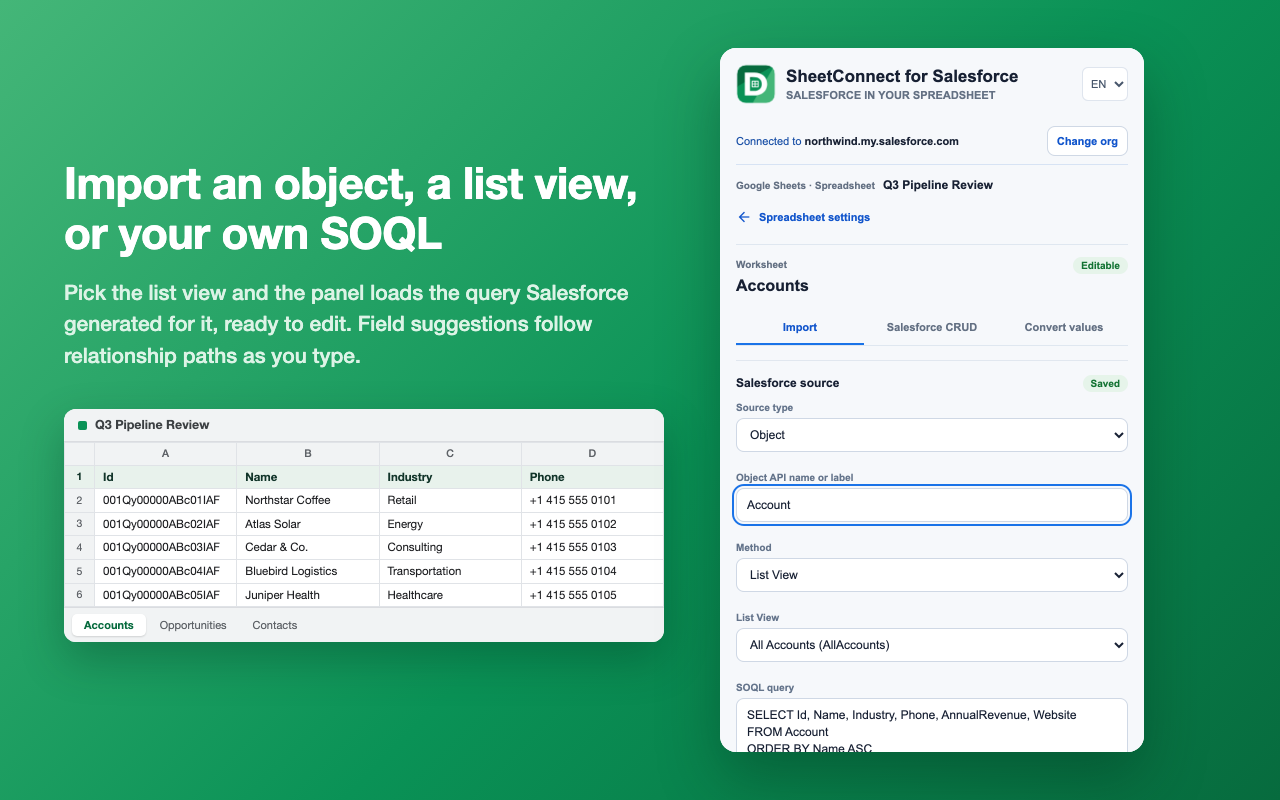
Pick any Salesforce object and import from a List View, with inline field suggestions that include relationship paths.
Write the query yourself when a list view is not the right shape, and import its results into the worksheet you choose.
Search reports by ID, name, developer name, or folder, then import the one you need.
Groupings, aggregates, subtotals, and grand totals import intact. Optional detail rows arrive for that run without changing the report in Salesforce.
Object imports follow every result page, so a large query is not capped at its first batch.
The worksheet acts as the input table. An optional data range limits the run to exactly the rows and columns you select.
Headers map to field API names or unambiguous labels, and permissions, required fields, types, duplicate headers, and ID prefixes are all checked first.
Send the worksheet in requests of 1 to 200 rows and decide whether one failed row rolls back the request it was in, or send it all as one Bulk API job that keeps going after the panel closes. Each run first saves the values it will change to a backup worksheet, with the steps to undo it, and Undelete brings deleted records back from the Recycle Bin.
Look a column up in Salesforce and write what it finds beside it, a column per field you name. The column you typed is left alone. Rows that match nothing say so, and a row matching several records gets the newest of them plus a note listing the rest.
Count or total the child records behind each row — one aggregate query per column rather than one per row — with an optional condition, so the total answers the question you asked.
When the other three tools are not enough, run anonymous Apex over the selected range. It arrives as input and whatever you leave in output is written back. What your code changes in input goes back to the sheet too. Twenty-seven templates to start from, each compiled against a real org.
The whole panel is available in both, using Salesforce's own Japanese terminology. A Japanese browser opens in Japanese; the selector in the panel header overrides it either way.
Choose the org, the worksheet, the source or operation, and the data range that the run is allowed to touch.
Review the header mapping and the record, error, and request counts before the run is offered.
Every run names the org, object, worksheet, operation, and record count, and waits for you. Apex is the one exception, and the panel says so on the button itself: one press runs your code in Salesforce and writes what it returns to the worksheet, with no confirmation in between.
The optional status column is inserted after your data, shifting later columns right rather than overwriting them, and it is off by default.
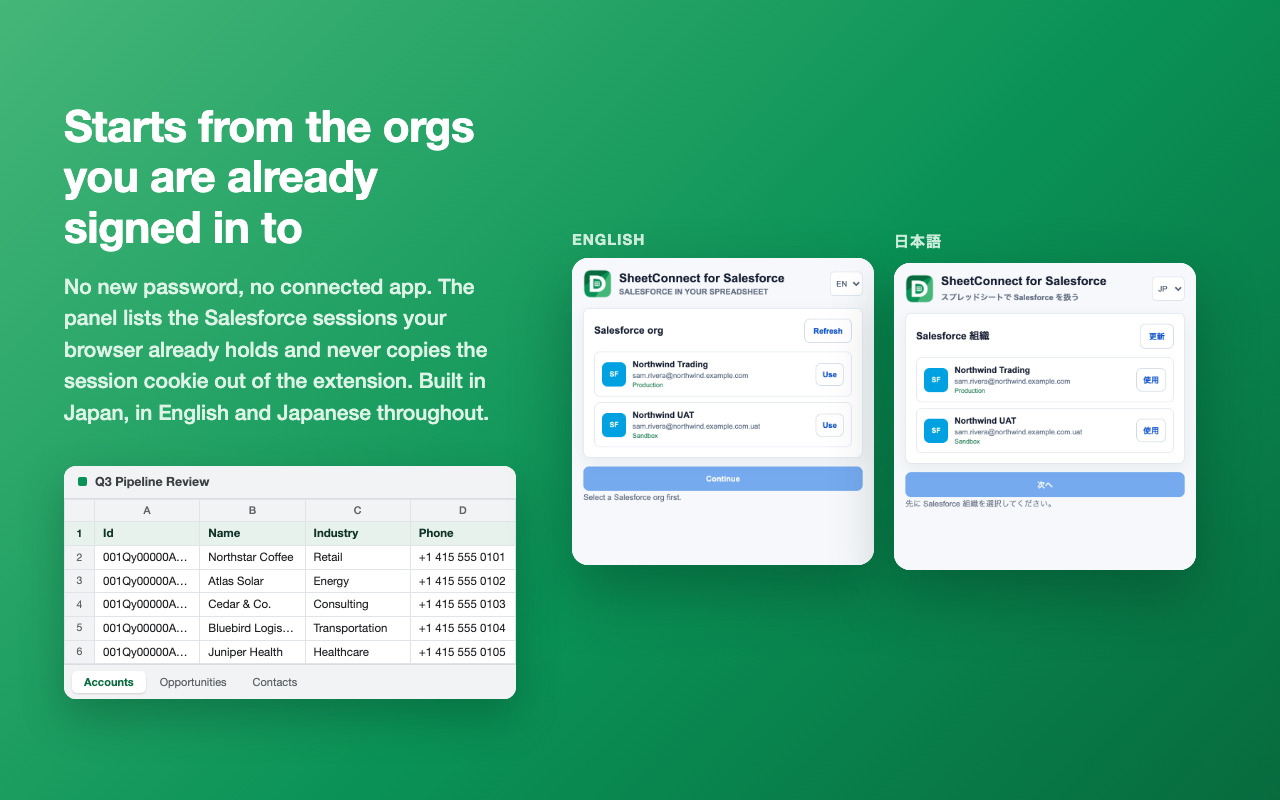
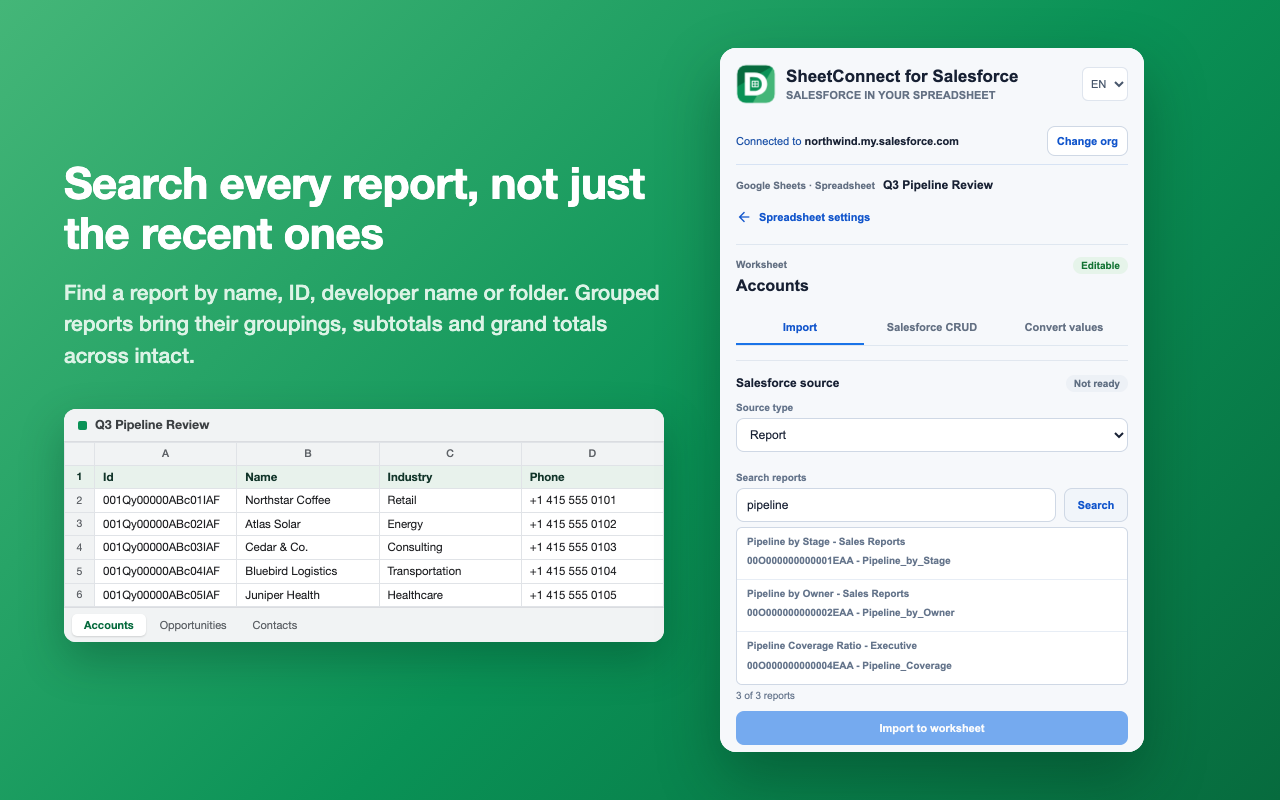
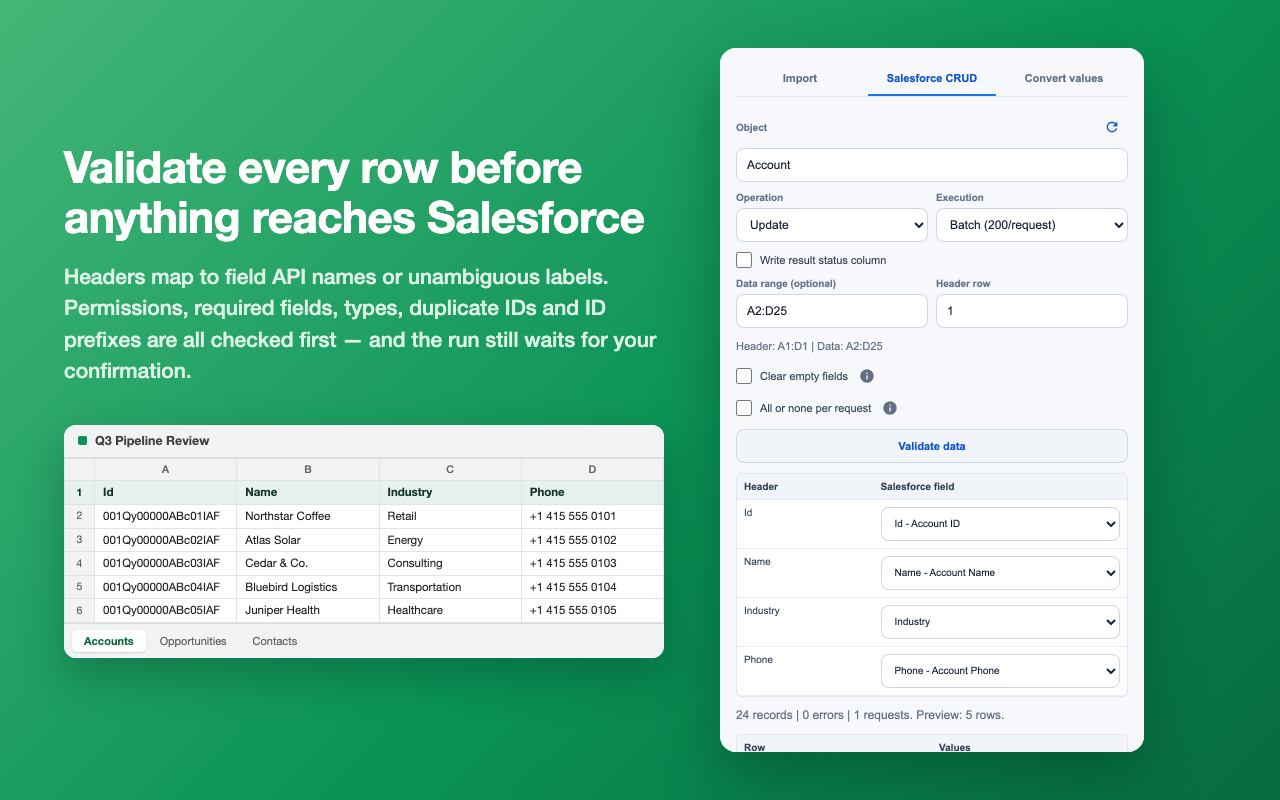
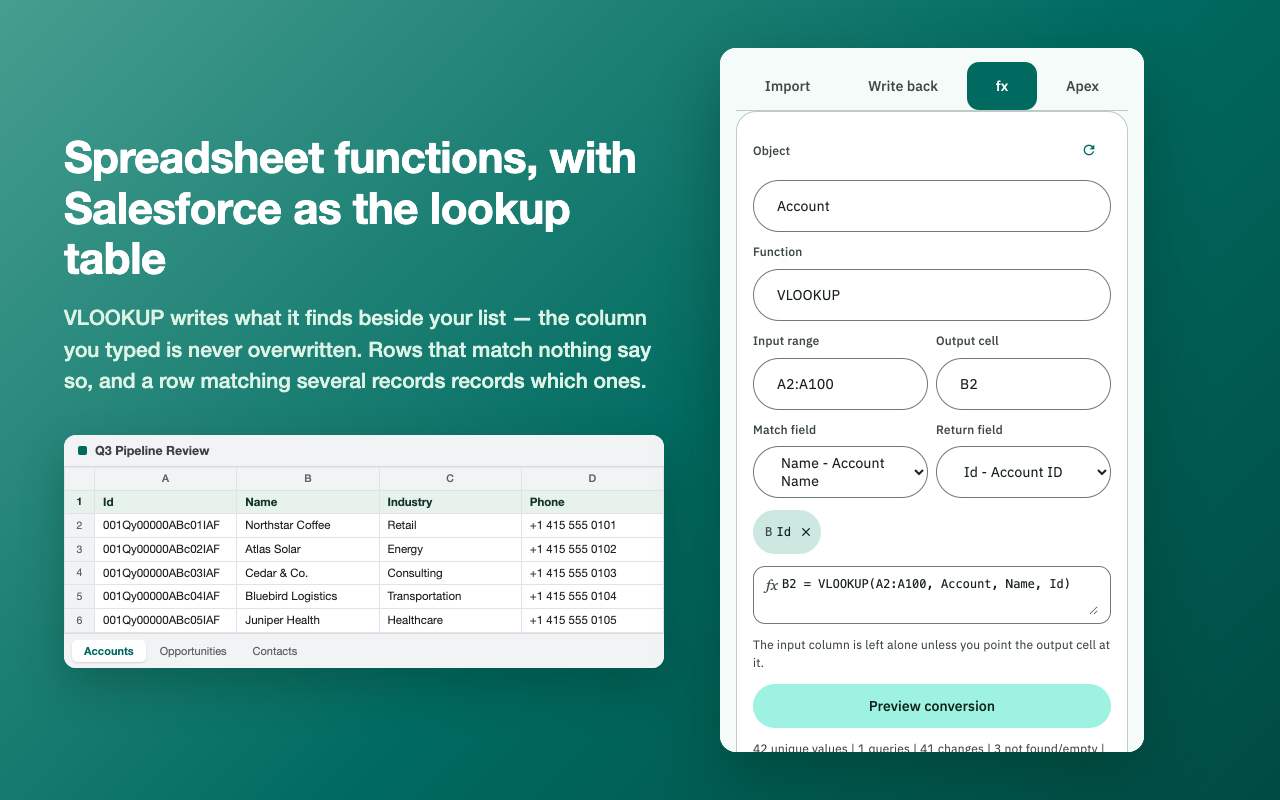
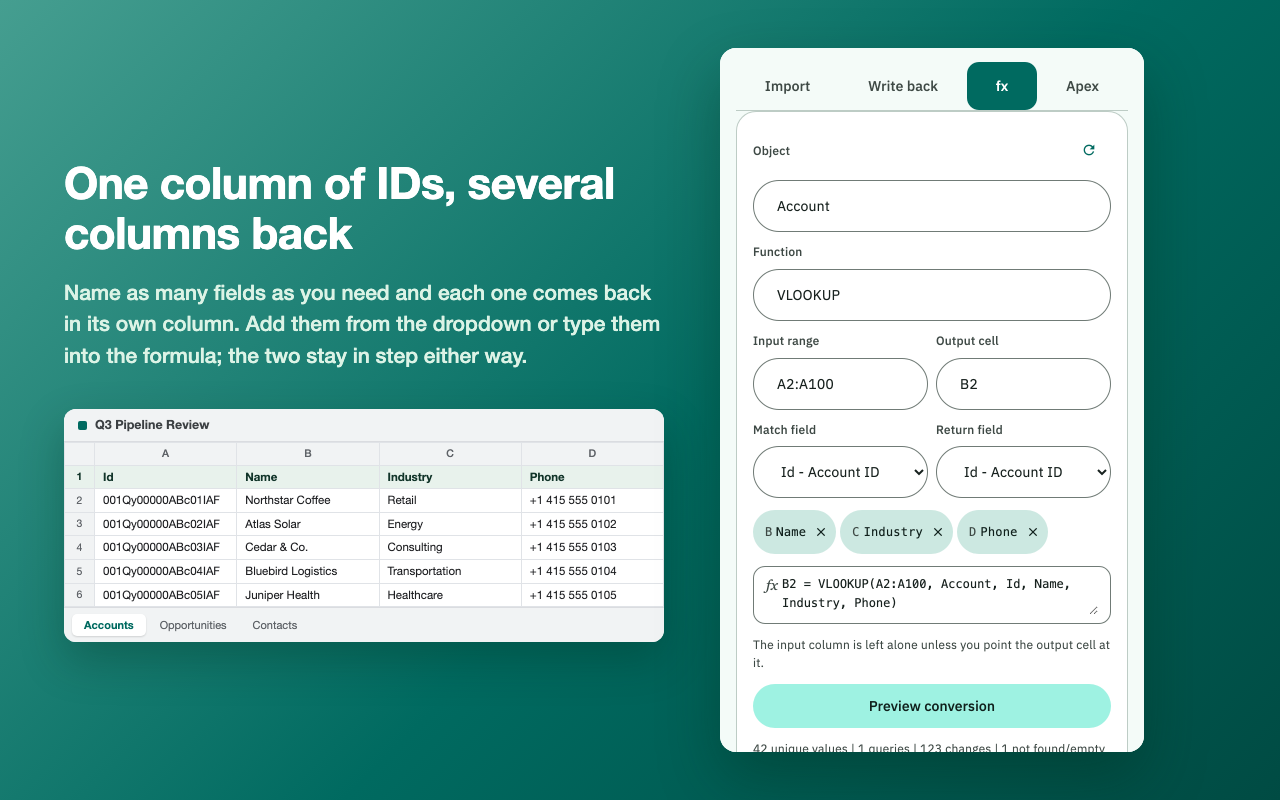
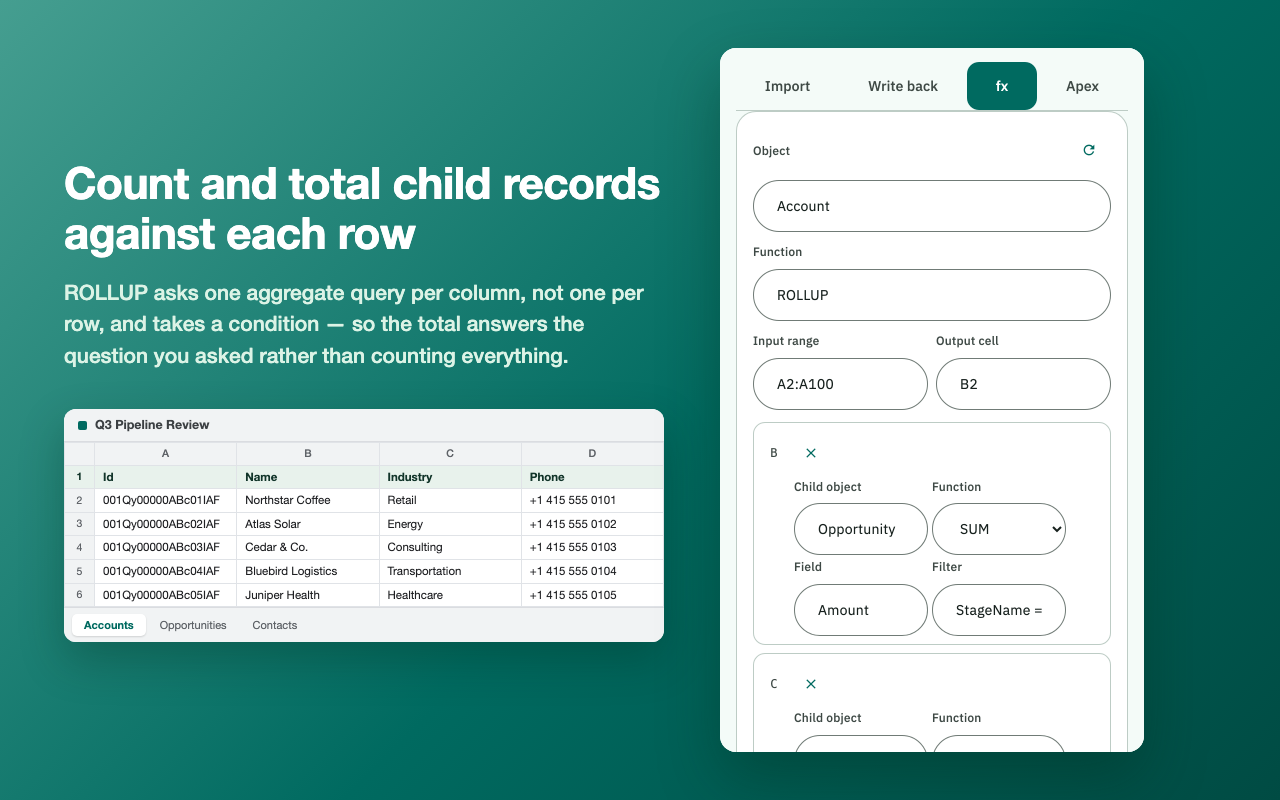
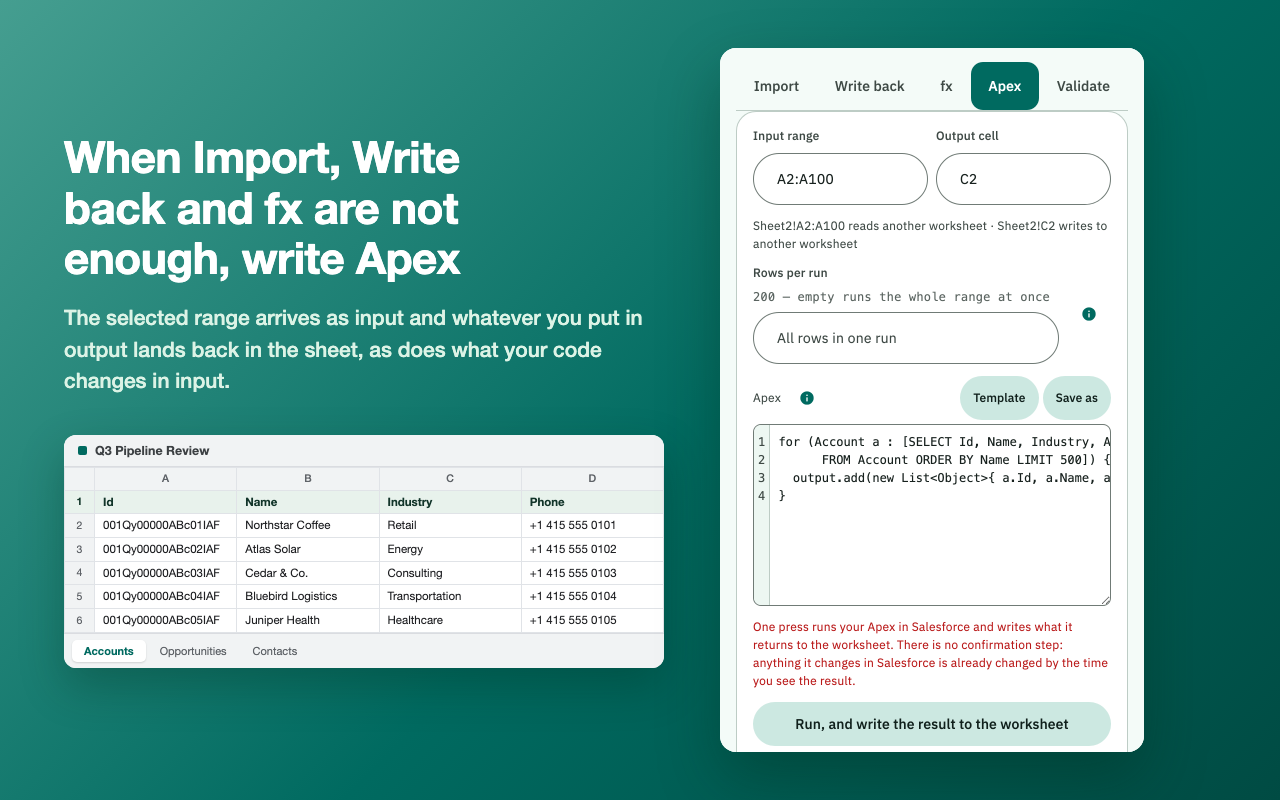
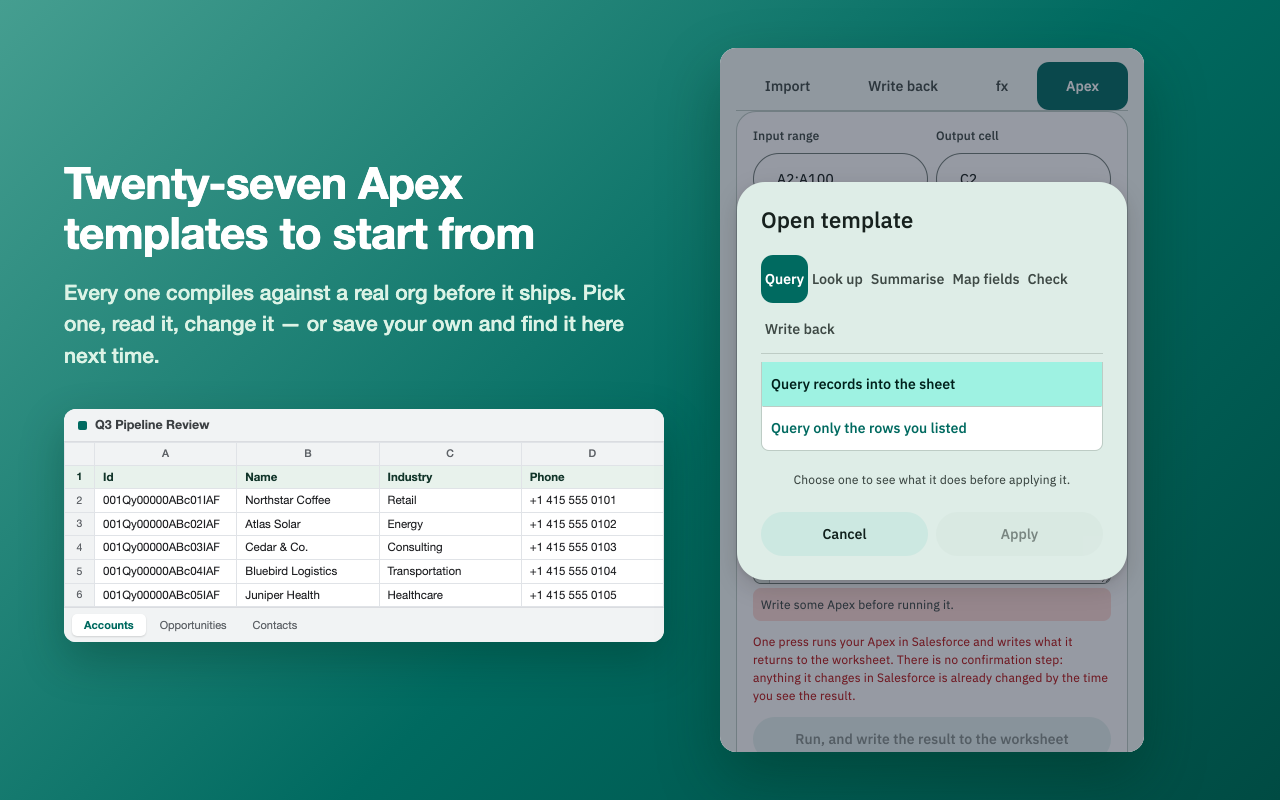
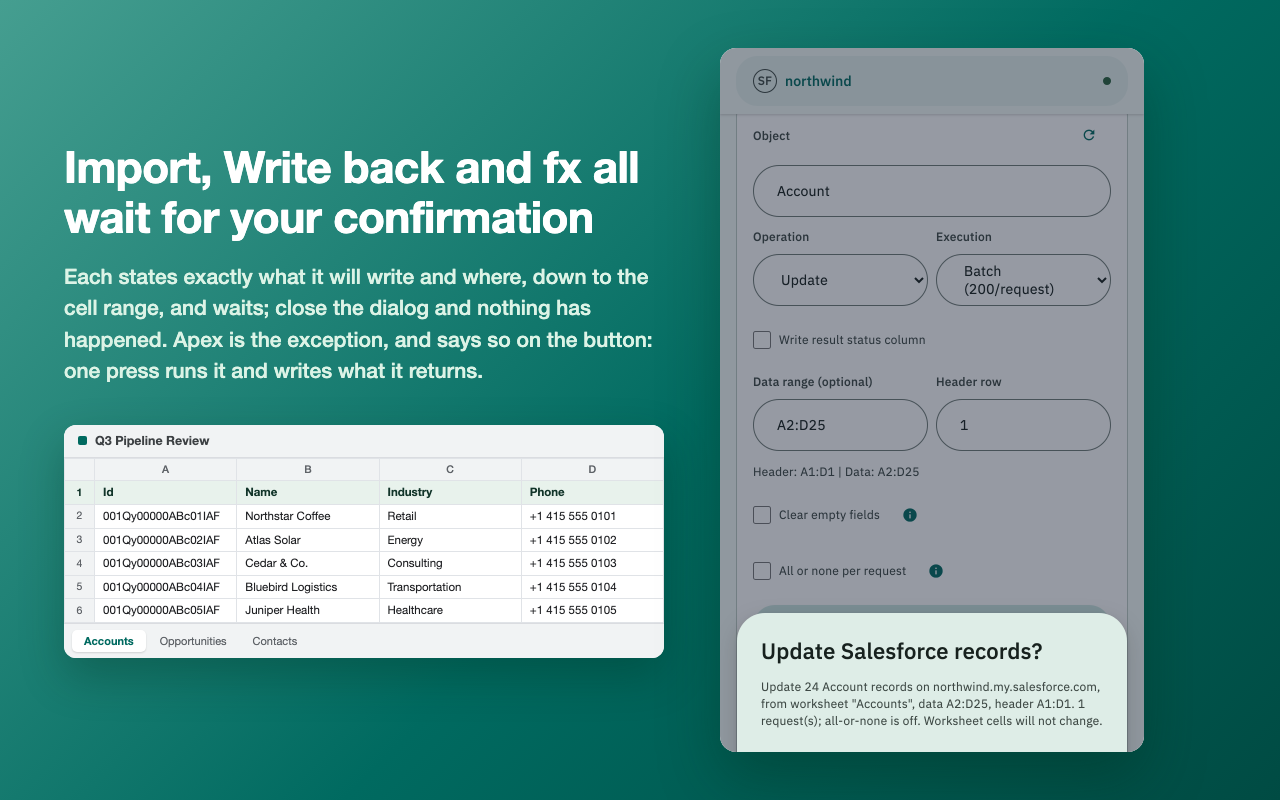
Every frame is the shipping side panel driven through its own code paths. The records are invented; no live Salesforce org, Google account, or customer data appears in them.
Installing grants Salesforce access only. Google access is a separate, later decision.
cookies: reads the existing Salesforce sid cookie locally to list the orgs you are signed in to and authenticate the API calls you request.identity: obtains a Chrome-managed Google OAuth token for the Google Sheets API, only after you select Connect Google. The only Google OAuth scope requested is https://www.googleapis.com/auth/drive.file, which reaches only the spreadsheets you hand over yourself through Google’s own file picker.sidePanel: presents the interface beside the open spreadsheet.storage: remembers the selected org, the per-org and per-worksheet source mapping (80 most recent), Apex you save as a named template (at most 50), the titles of spreadsheets you have opened (30 most recent, with no cell values), and SHA-256 fingerprints of sessions you chose to hide (at most 50).tabs: enables the toolbar action only on Google Sheets tabs, and confirms before every read or write that the worksheet is still the one open in the active tab.Version 0.9.0 is published on the Chrome Web Store and anyone can install it. It added the Apex tool and turned Convert into fx, with VLOOKUP and ROLLUP. Every released build passes its unit tests, source validation, and archive validation before it is packaged. Sign-in, import, and Salesforce record updates have been run end to end against a real Salesforce organization and a real Google account, and the aggregate queries ROLLUP issues have since been run against live organizations too.
Version 0.10.0 is prepared but not yet submitted. It adds LABEL and VALUE, which translate a picklist without querying at all, and lets write-back send requests of a size you choose, from 1 to 200 rows, while large data still goes as one Bulk API job; each run can back up what it changes to a worksheet first, and Undelete restores deleted records. Insert, update, upsert and delete have been run against a live organization.
The Google OAuth consent screen is In production, and Google’s verification of the requested scope is still open. In production is the OAuth publishing status; it does not by itself mean the app is Google-verified. Until verification completes you will see Google’s unverified-app screen when you connect your Google account, and the number of accounts that can authorize is capped. The privacy policy is publicly available.
The Google authorization has been narrowed from https://www.googleapis.com/auth/spreadsheets, which reached every spreadsheet in your Drive, to https://www.googleapis.com/auth/drive.file, which reaches only the spreadsheets you hand over yourself through Google’s own file picker. That narrowing shipped: drive.file is the only scope the released extension requests. It is a reduction in what the extension can see, not an addition.
This product was called DinaConnect during development and was renamed to SheetConnect before release. The draft store item was created under the old name; uploading the package renames it in place, because the manifest key pins the extension ID.